Transcribe a video. Edit every word. Export the captions and the cut.
Available for Windows and both Apple Silicon and Intel Macs. Development is ongoing.
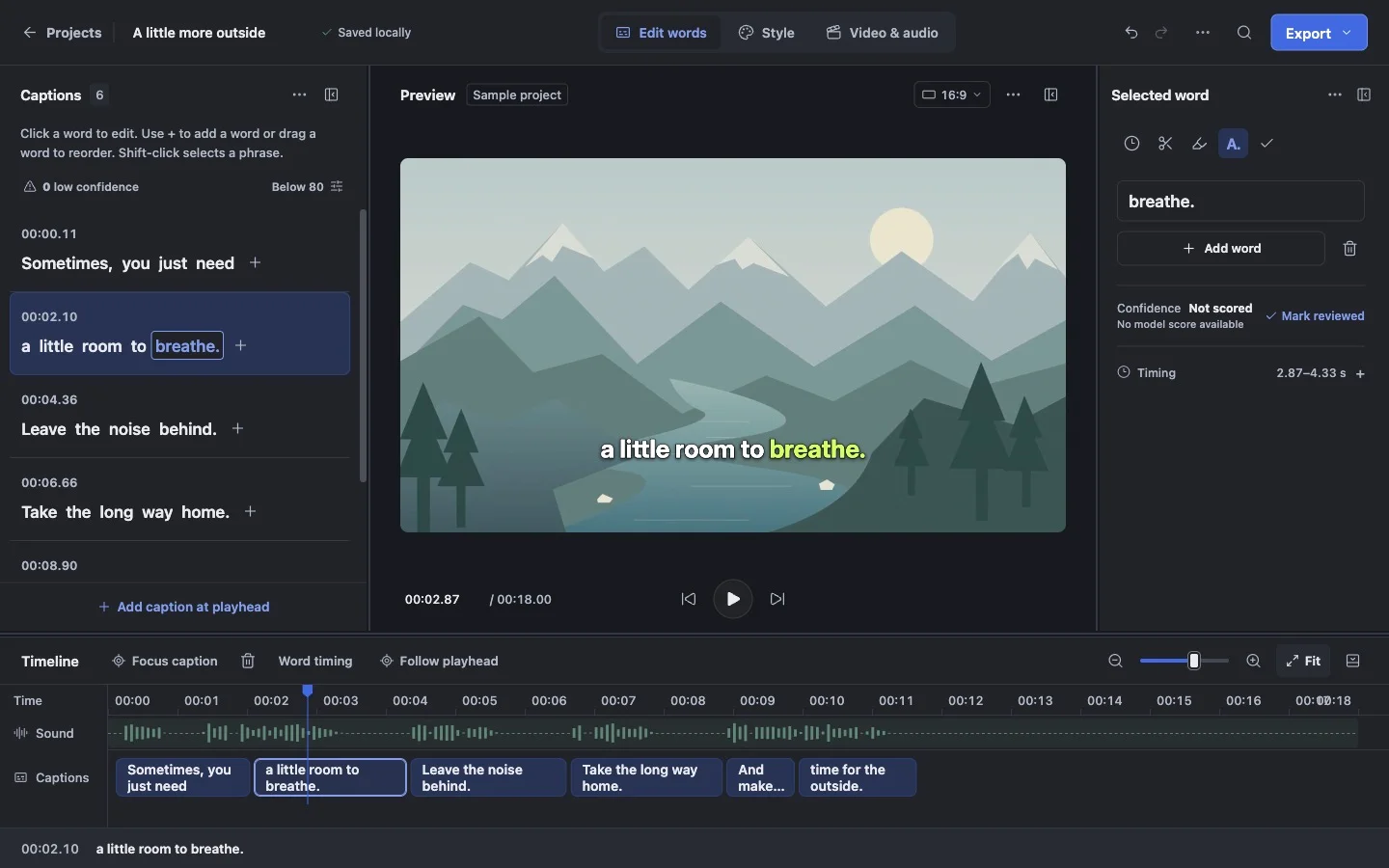
The actual desktop editor, with its built-in sample project.
Project overview
What it is.
Who it’s for
Video editors and creators who need accurate, styled captions and several versions of the same video.
Captionerman is a desktop video editor built around spoken words. Import footage, transcribe it locally, then edit the words and their timing beside the video. We built the caption editor, video and audio tools, export queue and desktop delivery as one product. It runs on Windows and Mac, with speech recognition and rendering performed on the user’s computer.
Local speech recognition and speaker detection
Editable transcripts with individual word timing and review flags
Caption styles, animation and a shared font library
Portrait, square and landscape versions in one project
Video and subtitle exports, reusable presets and batch jobs
Each word has editable text and timing. Editors can correct recognition mistakes, split or regroup caption blocks, find and replace text, and review uncertain words. Speaker labels can be renamed, merged or reassigned. A correction dictionary and vocabulary hints help with recurring names and terms in later projects.
Control how the words appear.
Caption styling covers fonts, colour, backgrounds, spacing and placement. Text can appear as a full caption, build word by word or show one word at a time, with separate spoken-word highlighting. Styles can apply across a project, to selected blocks or to a speaker, and save as reusable presets.
Several formats, one edit.
A project can contain portrait, landscape, square and other aspect versions. They share the transcript, timing, footage and audio while retaining their own framing and caption layout. That means an editor can correct a spoken word once, then adjust how the same moment fits each destination.
From a quick sample to a batch export.
Export a captioned video or separate SRT/VTT subtitles, and render a short sample before committing to the full job. Saved export presets and destination folders carry into later projects. The persistent queue, project recovery and reusable speech models support longer editing sessions and repeated batches.
How it works.
01
Import and transcribe
Bring in the source media and choose a local speech model. The transcript appears alongside the footage.
02
Review and style
Correct words and timing, identify speakers, set the caption look and frame each aspect version.
03
Export the versions
Check a sample, then render the finished videos or subtitle files with the saved export settings.
Individual word timings can be adjusted beside the video.